8.13. Dropdown Problem
Note
EdX offers full support for this problem type.
8.13.1. Overview
Dropdown problems allow learners to choose from a collection of answer options that are presented in a dropdown list. Unlike multiple choice problems, which have answers that are always visible directly below the question, dropdown problems do not show answer choices until the learner clicks the dropdown arrow.
8.13.2. Analyzing Performance on Dropdown Problems
For the dropdown problems in your course, you can use edX Insights to review aggregated learner performance data and examine submitted answers. For more information, see Using edX Insights.
8.13.3. Creating a Dropdown Problem
You can create dropdown problems in the simple editor or in the advanced editor. You can set up a problem in the simple editor, and then switch to the advanced editor to add more configuration options in XML. However, you cannot switch back to the simple editor from the advanced editor. Therefore, you might want to format the problem as completely as possible before you begin to use the advanced editor.
8.13.3.1. Use the Simple Editor to Create a Dropdown Problem
To use the simple editor to create a dropdown problem, follow these steps.
- In the unit where you want to create the problem, under Add New Component select Problem.
- Select one of the two dropdown problem templates.
From the list of Common Problem Types, select Dropdown.
From the list of Common Problems with Hints and Feedback, select Dropdown with Hints and Feedback. For more information, see Use Feedback in a Dropdown Problem.
Studio adds the problem to the unit.
- Select Edit. The simple editor opens.
- Replace the sample problem text with your own text.
- Determine the text that describes the question you want learners to answer,
and surround that text with two pairs of angle brackets (
>>question<<). This text identifies the question for screen readers, reports, and Insights. - Edit your text to place all of the possible answers on the same line, separated by commas.
- Select all of the answer options, and then select Dropdown from the toolbar. A double set of brackets ([[ ]]) appears to surround the answer options.
- To identify the problem’s answer, locate that answer inside the brackets and surround the correct answer with parentheses.
- To provide an explanation, select the explanation text and then select
Explanation from the toolbar.
[explanation]appears before and after the explanation text. - Select Settings and provide an identifying Display Name for the problem.
- Define additional settings for the problem. For more information, see Problem Settings.
- Select Save.
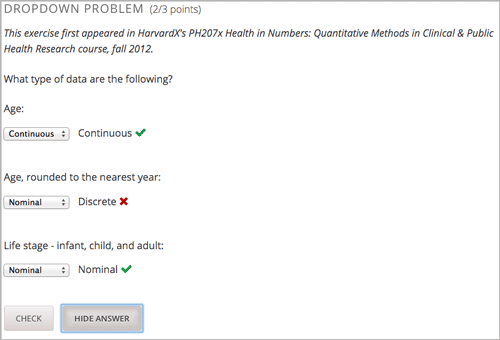
For the example problem illustrated above, the following text is displayed in the problem component.
>>What type of data are the following?<<

Age:
[[Nominal, Discrete, (Continuous)]]
Age, rounded to the nearest year:
[[Nominal, (Discrete), Continuous]]
Life stage - infant, child, and adult:
[[(Nominal), Discrete, Continuous]]
8.13.3.2. Use the Advanced Editor to Edit a Dropdown Problem
To use the advanced editor to edit a dropdown problem, follow these steps.
- Follow the steps for creating the problem in the simple editor.
- Select Advanced Editor, and then edit the XML to add the tags and attributes you want. An example follows.
Problem Code:
<problem>
<p>
<em>This exercise first appeared in HarvardX's PH207x Health in Numbers:
Quantitative Methods in Clinical & Public Health Research course, fall
2012.</em>
</p>
<p>What type of data are the following?</p>
<p>Age:</p>
<optionresponse>
<optioninput options="('Nominal','Discrete','Continuous')"
correct="Continuous" label="Age"/>
</optionresponse>
<p>Age, rounded to the nearest year:</p>
<optionresponse>
<optioninput options="('Nominal','Discrete','Continuous')"
correct="Discrete" label="Age, rounded to the nearest year"/>
</optionresponse>
<p>Life stage - infant, child, and adult:</p>
<optionresponse>
<optioninput options="('Nominal','Discrete','Continuous')"
correct="Nominal" label="Life stage"/>
</optionresponse>
</problem>
8.13.4. Using Feedback in a Dropdown Problem
You can add feedback in a dropdown problem using the simple editor or the advanced editor. For an overview of feedback in problems, see Adding Feedback and Hints to a Problem.
In dropdown problems, you can provide feedback for each option that a learner can select. Use the following guidelines when providing feedback.
- Use feedback for the incorrect answers to target common misperceptions and mistakes.
- Ensure feedback provides some guidance to the learner about how to arrive at the correct answer.
- Use feedback for the correct answer as an opportunity to reinforce why the answer is correct. Because learners are able to guess, ensure that feedback provides a reason why the answer is correct for learners who might have selected that answer by chance.
8.13.4.1. Configure Feedback in the Simple Editor
In the simple editor, you configure answer feedback with the following syntax. When you create a new dropdown problem, select the template Dropdown with Hints and Feedback. This template has example feedback syntax that you can replace.
Wrong Answer {{Feedback for learners who select this answer.}}
(Correct Answer) {{Feedback for learners who select this answer.}}
For example, the following problem has feedback for each possible answer.
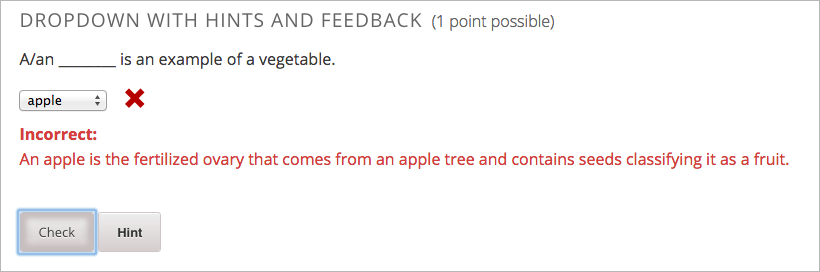
>>A/an ________ is an example of a vegetable.<<

[[
  apple {{An apple is the fertilized ovary that comes from an apple tree and
    contains seeds classifying it as a fruit.}}
  pumpkin {{A pumpkin is the fertilized ovary of a squash plant and contains
    seeds classifying it as a fruit.}}
  (potato) {{A potato is an edible part of a plant in tuber form and is
    classified as a vegetable}}
  tomato {{Many people mistakenly think a tomato is a vegetable. However,
    because a tomato is the fertilized ovary of a tomato plant and contains
    seeds it is classified as a fruit.}}
]]
8.13.4.2. Configure Feedback in the Advanced Editor
In the advanced editor, you configure answer feedback with the following syntax.
<option correct="False">
  Option Label
  <optionhint>
    Feedback for when learner selects this answer.
  </optionhint>
</option>
For example, the following problem has feedback for each answer.
<optionresponse>
  <optioninput label="A/an ________ is an example of a vegetable.">
    <option correct="False">
      apple
      <optionhint>
        An apple is the fertilized ovary that comes from an apple tree and
        contains seeds classifying it as a fruit.
      </optionhint>
    </option>
    <option correct="False">
      pumpkin
      <optionhint>
        A pumpkin is the fertilized ovary of a squash plant and contains
        seeds classifying it as a fruit.
      </optionhint>
    </option>
    <option correct="True">
      potato
      <optionhint>
        A potato is an edible part of a plant in tuber form and is
        classified as a vegetable.
      </optionhint>
    </option>
    <option correct="False">
      tomato
      <optionhint>
        Many people mistakenly think a tomato is a vegetable. However,
        because a tomato is the fertilized ovary of a tomato plant and
        contains seeds it is classified as a fruit.
      </optionhint>
    </option>
  </optioninput>
</optionresponse>
8.13.4.3. Customize Feedback Labels
By default, the feedback labels shown to learners are Correct and Incorrect. If you do not define feedback labels, learners see these terms when they submit an answer, as in the following example.
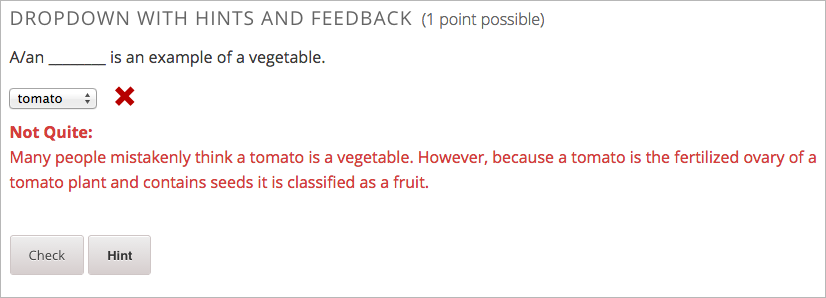
You can configure the problem to override the default labels. For example, you can configure a custom label for a specific wrong answer.
Note
The default labels Correct and Incorrect are displayed in the learner’s requested language. If you provide custom labels, they are displayed to all users as you configure them and are not translated into different languages.
8.13.4.3.1. Customize Feedback Labels in the Simple Editor
In the simple editor, you configure custom feedback labels with the following syntax.
( ) Answer {{Label:: Feedback for learners who select this answer.}}
For example, the following feedback is configured to use a custom label.
( ) tomato {{Not Quite:: Many people mistakenly think a tomato is a
vegetable. However, because a tomato is the fertilized ovary of a tomato
plant and contains seeds, it is a fruit.}}
8.13.4.3.2. Customize Feedback Labels in the Advanced Editor
In the advanced editor, you configure custom feedback labels with the following syntax.
<option correct="False">
  Answer
  <optionhint label="Custom Label">
    Feedback for learners who select this answer.
  </optionhint>
</option>
For example, the following feedback is configured to use a custom label.
<option correct="False">
  tomato
  <optionhint label="Not Quite">
    Many people mistakenly think a tomato is a vegetable. However, because a
    tomato is the fertilized ovary of a tomato plant and contains seeds it
    is classified as a fruit.
  </optionhint>
</option>
8.13.5. Using Hints in a Dropdown Problem
You can use hints in a dropdown problem, using the simple editor or the advanced editor. For an overview of hints in problems, see Adding Feedback and Hints to a Problem.
8.13.5.1. Configure Hints in the Simple Editor
In the simple editor, you configure hints with the following syntax.
||Hint 1||
||Hint 2||
||Hint n||
Note
You can configure any number of hints. The learner views one hint at a time and views the next one by selecting Hint again.
For example, the following problem has two hints.
||A fruit is the fertilized ovary from a flower.||
||A fruit contains seeds of the plant.||
8.13.5.2. Configure Hints in the Advanced Editor
In the advanced editor, you configure each hint in the <hint> element
within the <demandhint> element.
<demandhint>
  <hint>Hint 1</hint>
  <hint>Hint 2</hint>
  <hint>Hint 3</hint>
</demandhint>
For example, the following XML shows two hints.
<demandhint>
  <hint>A fruit is the fertilized ovary from a flower.</hint>
  <hint>A fruit contains seeds of the plant.</hint>
</demandhint>
8.13.6. Dropdown Problem XML
8.13.6.1. Template
<problem>
<legend>Question text</legend>
<optionresponse>
  <option correct="False">
    Option Label
    <optionhint>
      Feedback for when learner selects this answer.
    </optionhint>
  </option>
  <option correct="True">
    Option Label
    <optionhint>
      Feedback for when learner selects this answer.
    </optionhint>
  </option>
</optionresponse>
<demandhint>
  <hint>Hint 1</hint>
  <hint>Hint 2</hint>
  <hint>Hint 3</hint>
</demandhint>
<solution>
  <div class="detailed-solution">
    <p>Explanation or Solution Header</p>
    <p>Explanation or solution text</p>
  </div>
</solution>
</problem>
8.13.6.2. Tags
<optionresponse>(required): Indicates that the problem is a dropdown problem.<option>(required): Lists an answer option.<demandhint>(optional): Specifies hints for the learner.
Tag: <optionresponse>
Indicates that the problem is a dropdown problem.
Attributes
(none)
Children
<option>
Tag: <option>
Lists the answer options.
Attributes
Attribute Description correct (required) Indicates whether an answer is correct. Possible values are “true” and “false”. Only one correct attribute can be set to “true”. Children
<optionhint>
Tag: <optionhint>
Specifies a hint for the answer.
Tag: <demandhint>
Specifies hints available to the learner.
Children
<hint>
Tag: <hint>
Specifies a hint available to the learner.
Children
(none)